
Nusuk app guide
The Ultimate Step-by-Step Guide to Booking Umrah & Rawdah via Nusuk
Everything you need to set up your Nusuk profile, secure Rawdah prayer slots and issue official permits — without the hassle.
- Official Ministry of Hajj & Umrah platform
- Updated 2026 app interface
- 20-minute Rawdah slot
Section 1
Downloading & setting up the Nusuk app
Before booking any permit you need a verified Nusuk profile. It takes about five minutes.
Step 1
Download the app
- iPhone: open the App Store and search for “Nusuk”.
- Android: open Google Play and search for “Nusuk”.
- Check the developer is listed as the Saudi Ministry of Hajj and Umrah — avoid copycat apps.
Step 2
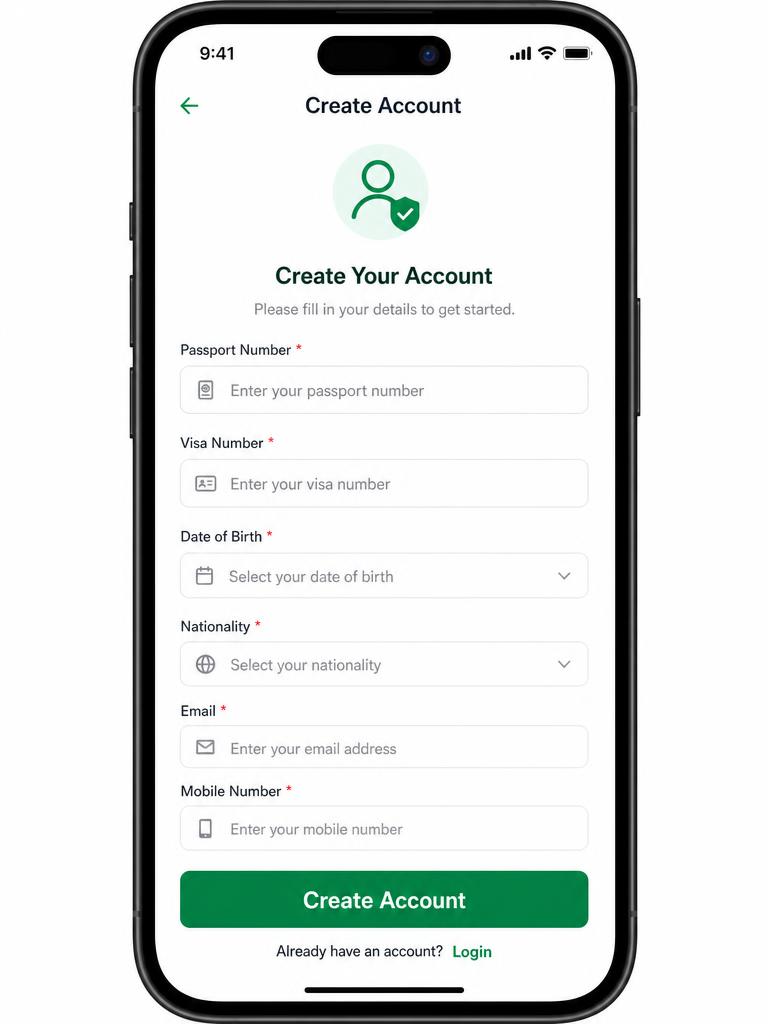
Create your account
- Choose your language (English, Arabic and more).
- Select “New user” / “Visitor” if you are travelling on a tourist eVisa or Umrah visa.
- Enter your visa number, passport number, date of birth and nationality.
- Add an email address and a mobile number that can receive SMS.
- Create a strong password.
Step 3
Verify with the OTP
- A one-time code is sent to your email or phone.
- Enter it in the app to activate your profile.
- If nothing arrives, check junk mail and make sure roaming for SMS is switched on.
Step 4
Add your companions
- Family members travelling on the same visa file usually appear automatically.
- Anyone missing can be added using their passport and visa details.
- Check every name and passport number now — it saves problems at the gate later.
You can also use the Nusuk website in a browser if your phone storage is low — the steps and screens are almost identical.
Section 2
Booking Al-Rawdah Al-Sharifah in Madinah
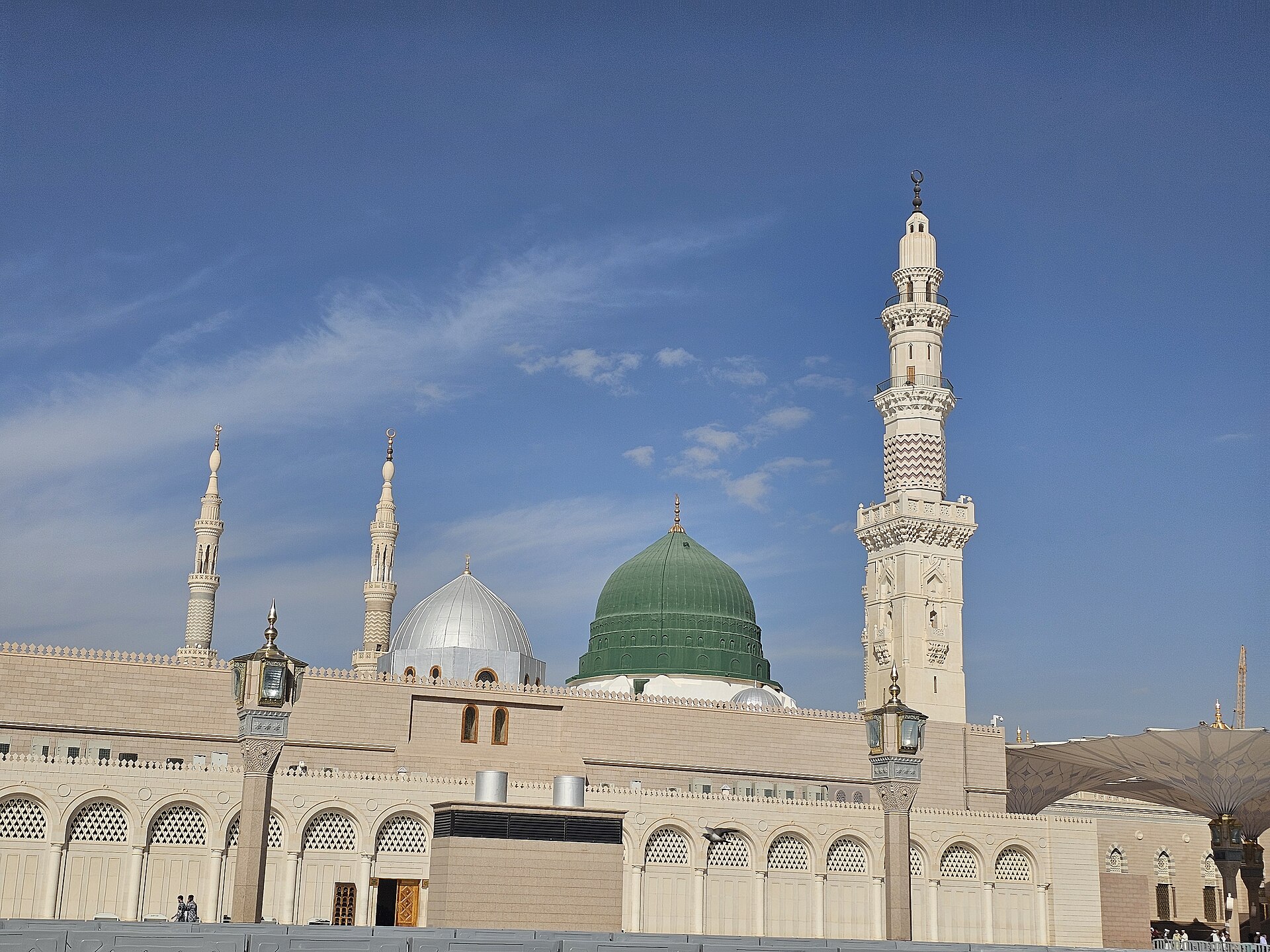
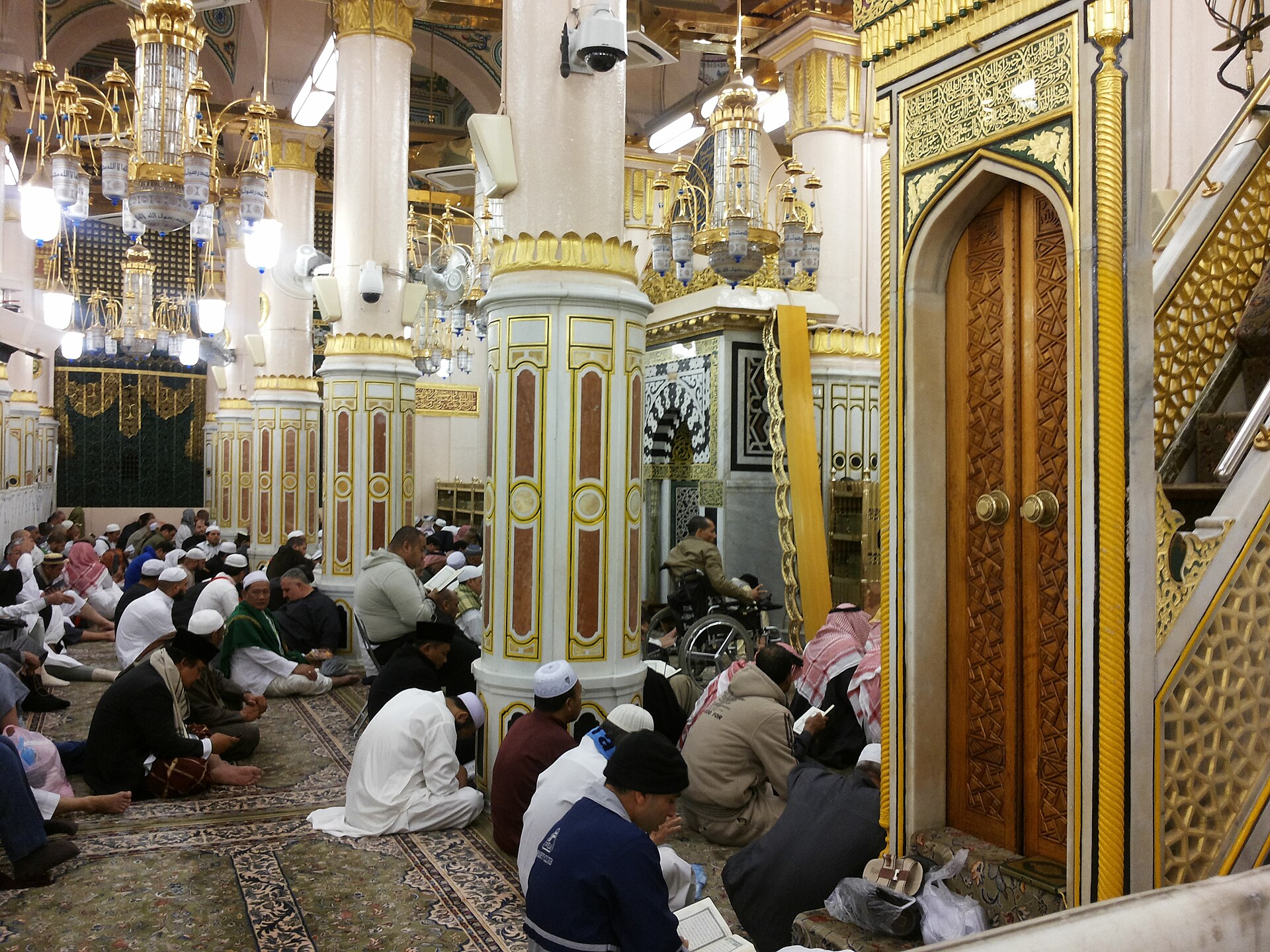
The Rawdah — the blessed area between the Prophet's ﷺ pulpit and his resting place — requires a free permit with a fixed 20-minute window.
Step 1
Open the services menu
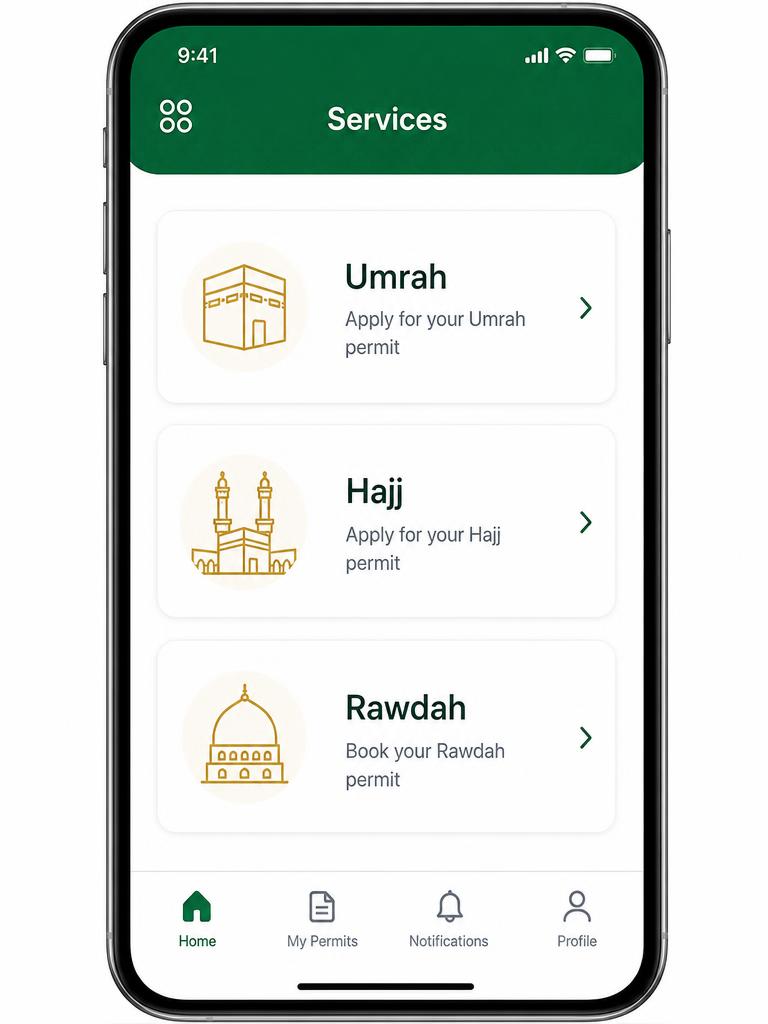
From the home screen, tap the menu icon (the four small circles) on the left. You will see three services: Umrah, Hajj and Rawdah.
Step 2
Choose Rawdah and your category
Tap Al-Rawdah Al-Sharifah, then select the visiting category. Men and women visit at different times of the day.
- Select “Males”, then tick your name and any male companions on your profile.
- Men's slots are usually offered around Fajr (roughly 02:00–05:00), late morning, Asr and after Isha.
- Enter through the gates shown on your permit and follow the marshals to the men's waiting area.
Step 3
Choose your date and time window
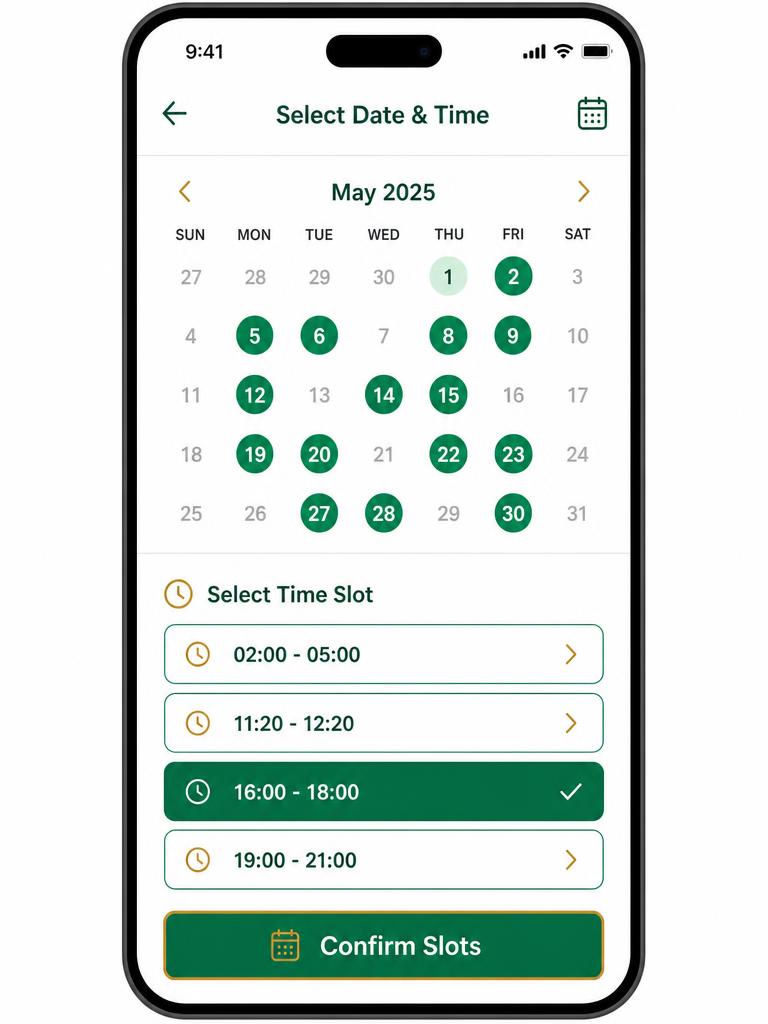
Browse the calendar for open dates, then choose from the daily prayer windows, for example:
- Fajr window: around 02:00 – 05:00
- Dhuhr to Asr: around 11:20 – 12:20
- Asr window: around 16:00 – 18:00
- Isha window: after Isha until around midnight
Your chosen slot highlights in green — then tap Confirm slots. Exact times change with the season and prayer timings.
Step 4
Review and confirm
- Check the date, entry window and each pilgrim's name.
- Agree to the terms and conditions.
- Tap “Confirm booking” — the permit then appears in your Permits tab.
Section 3
Booking your Umrah permit in Makkah
The Umrah permit uses the same screens — pilgrims, date, arrival window, confirm.
Step 1
Open the menu, choose Umrah
Tap the four-circle menu icon at the top left and select the Umrah card.
Step 2
Select the pilgrims
Tick your name and any dependants travelling under your profile, then continue.
Step 3
Pick a date and crowd window
Days are colour-coded by how busy they are:
- Green — low crowd
- Yellow — moderate
- Red — very busy
Then choose a two-hour arrival window that suits your itinerary.
Step 4
Accept the conditions & collect the permit
- Agree to the health regulations and entry conditions.
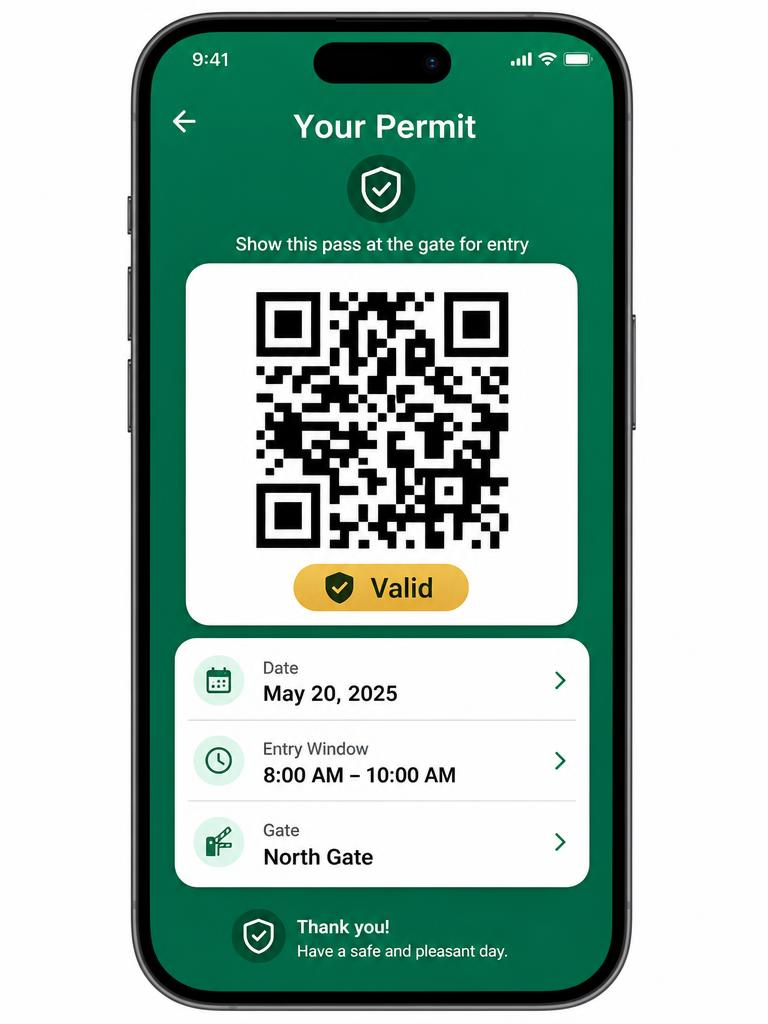
- Note the entry gate shown on the permit.
- The permit and its QR code appear under the Permits tab, ready to show at the gate.
Section 4
Critical Rawdah rules & attendance protocol
Read these carefully — most cancelled permits are lost simply because attendance was not confirmed in time.
One visit per year
Standard booking allows one Rawdah visit per year, though released or cancelled slots can sometimes be secured again.
20 minutes inside
Time inside the Rawdah is capped at 20 minutes so that everyone gets the chance to pray peacefully.
Confirm your attendance
You must confirm attendance in the app. The window opens 48 hours before your slot and closes strictly 2 hours before. Miss it and the slot is cancelled automatically.
QR code released 2 hours before
Your entry QR code is generated 2 hours before the slot and is single-use. Entry is not possible without it.
Arrive 30 minutes early
Be at the designated courtyard gathering point at least 30 minutes before your entry time.
Leave promptly
Follow staff instructions and exit once your 20 minutes are up so the next group of pilgrims can enter.
Set two phone alarms. One for 24 hours before your slot to confirm attendance, and one for 2.5 hours before to open the app, load the QR code and set off. This single habit prevents almost every lost Rawdah booking.
Section 5
Pro tips from travellers who have done it
Small habits that make the difference between a smooth booking and a missed opportunity.
The 20-minute refresh
If no Rawdah slots appear on the calendar, close and reopen the app roughly every 20 minutes. Released appointments and cancellations reappear in real time — persistence usually wins.
Cancel early if plans change
If you cannot attend, cancel the permit in the app straight away. It frees the slot for another pilgrim and resets your ability to rebook.
Keep data live
Have roaming or a Saudi eSIM active so the QR code loads instantly at the gate. Screenshots of the code are not accepted.
Nusuk questions we are asked most
Section 6
Watch the Nusuk walkthrough in your language
Prefer to follow along on video? These step-by-step guides cover the same booking journey in English, Urdu and Bangla.
Nusuk app walkthrough — English
Full step-by-step booking of your Umrah permit and Rawdah slot.
نسک ایپ کی مکمل رہنمائی — اردو
عمرہ پرمٹ اور ریاض الجنہ کی بکنگ کا آسان طریقہ۔
নুসুক অ্যাপ গাইড — বাংলা
উমরাহ পারমিট ও রওজা বুকিংয়ের ধাপে ধাপে নির্দেশনা।
We can walk you through it
Booking with Simple Umrah? We will help you register on Nusuk, plan your Rawdah timings around your flights and make sure every permit is in place before you travel.
Screens shown are simplified illustrations of the booking journey, not official Nusuk screenshots. App layouts, timings and rules are set by the Saudi Ministry of Hajj and Umrah and can change.